KeySticker — macOS Shortcut Panel
A floating Mac panel that shows the shortcuts of whatever app you're using — in eleven languages.
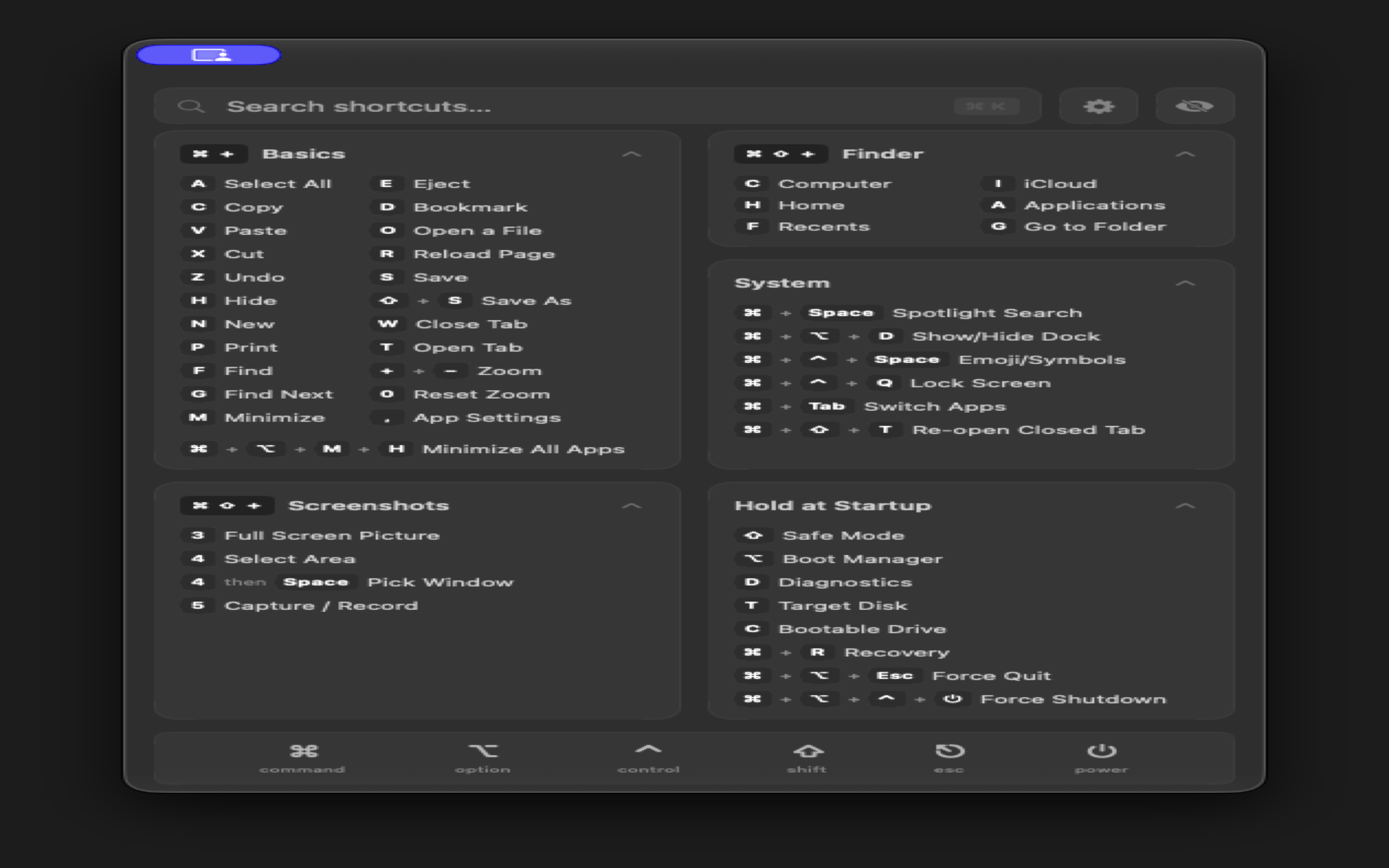
KeySticker is a small Mac utility: one hotkey opens a floating panel with the keyboard shortcuts of the app in front of you. I have designed and built it on my own since 2024.
KeySticker is a Mac utility that remembers shortcuts so you don't have to. Press one hotkey and a floating glass panel appears, showing the shortcuts of whatever app you're using — switch to Figma and it shows Figma. It ships with about 2,790 shortcuts for 75 apps, speaks eleven languages, and was built with zero outside code libraries.
- Role
- Solo — design & code
- Timeline
- 2024 — ongoing
- Stack
- Swift 5.9 · AppKit (lifecycle) · SwiftUI (UI) · Carbon (hotkeys) · Combine · Supabase PostgREST · XcodeGen · Fastlane · XCTest · MetricKit
The pitch
A floating panel that remembers the shortcut you forgot.
The problem.
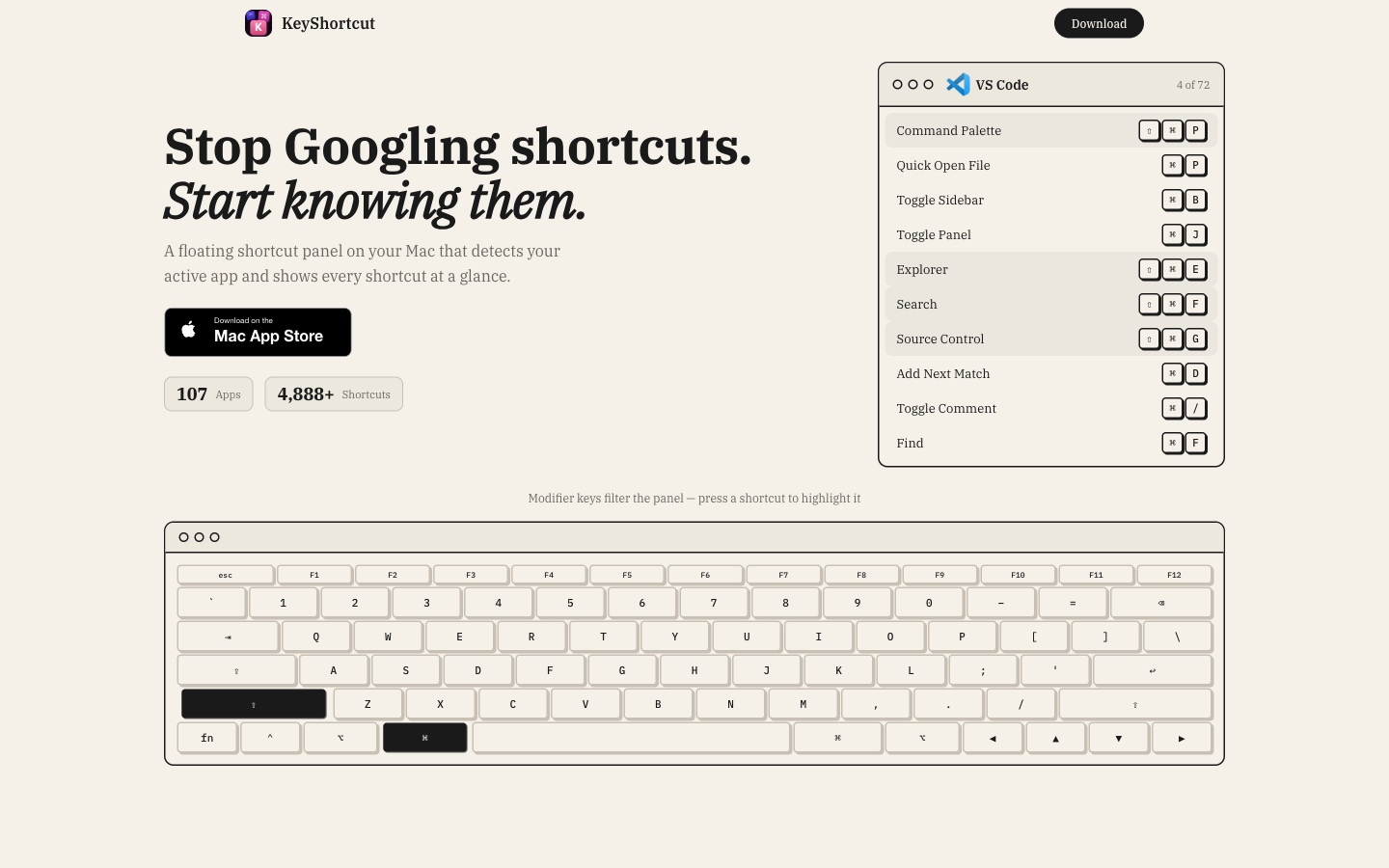
Every serious Mac app has a hundred keyboard shortcuts. Nobody remembers a hundred. Your two options — dig through the menus, or switch away to a cheat-sheet website — both break the thing you were doing. A reference is only useful if it's already on screen.
The product.
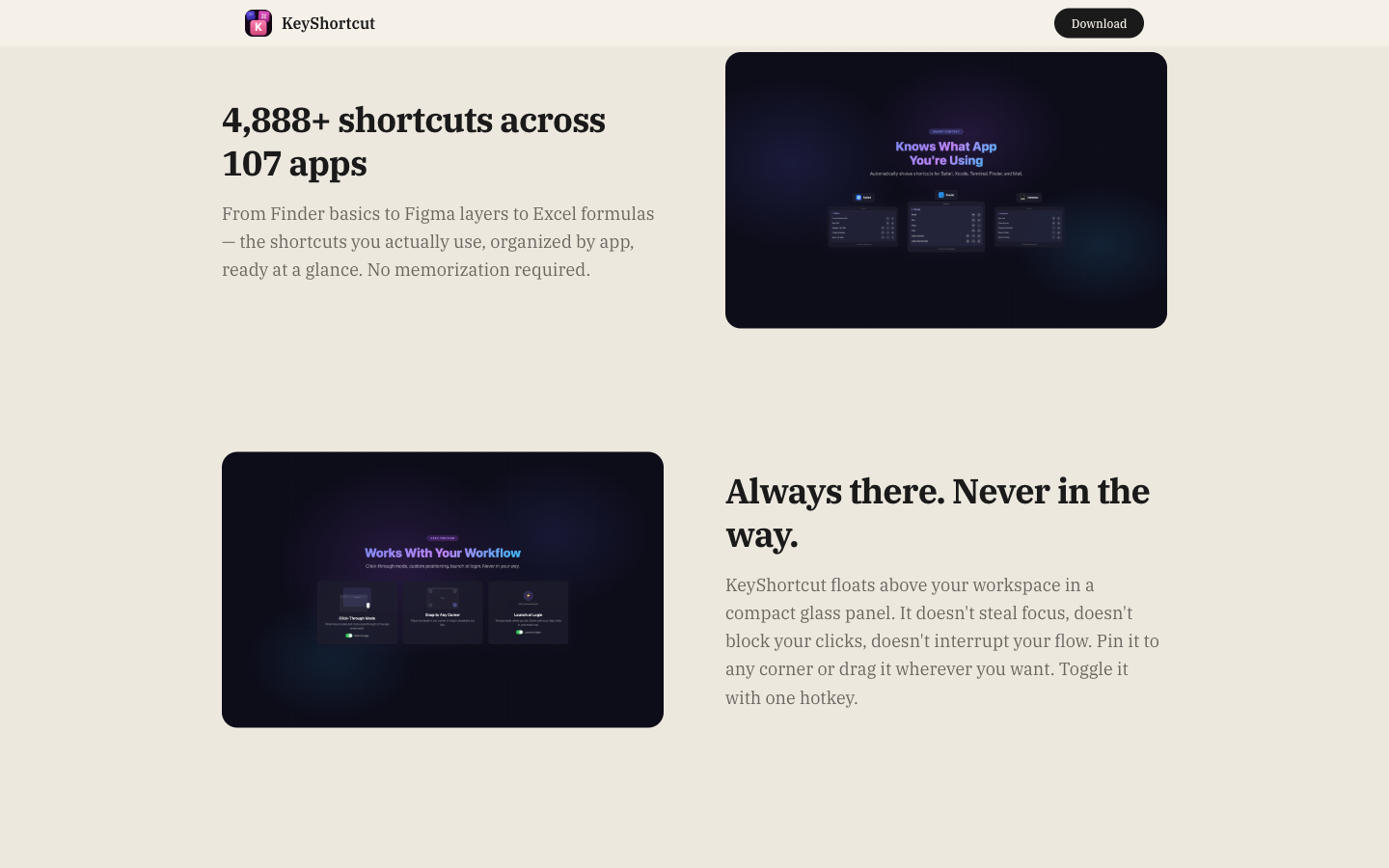
KeySticker is a floating panel that shows the shortcuts of whatever app you're using right now. Switch to Xcode, you get Xcode. Switch to Figma, you get Figma. One hotkey shows or hides it, a click on any row copies it, and you can search everything by name — 75 apps and about 2,790 shortcuts built in, with room for more.
Native, on purpose
Pure Apple technology, zero outside libraries.
Built the classic way.
The app is written entirely with Apple's own tools — not one line of third-party code. That's deliberate: outside libraries tend to break when the system updates, and Apple's own parts don't. Even the cloud connection is plain system networking.
The glass panel, layer by layer.
- Real system blur — The frosted-glass look is the system's own material — not a picture of blur.
- A soft dark tint — A gentle dark layer sits on top of the blur, so the text stays readable on any background.
- Truly transparent — A small custom layer strips away every solid background the UI tries to add, so the glass shows through cleanly.
- Never steals your focus — The panel floats above your work, follows you across desktops — and never takes the keyboard away from the app you're using.
The content
Three sources of shortcuts, one shelf.
Shortcuts are data, not code.
The app doesn't care where a shortcut comes from. It ships with a built-in database of about 2,790 entries, it can refresh itself from the cloud in the background, and it accepts shortcut packs you import yourself. All three sources land on the same shelf.
Offline first, in four steps.
- Instant start — The app opens against its built-in database. No internet needed on first launch.
- Read the saved copy — If a previous cloud update was saved on disk, it loads next.
- Refresh quietly — In the background, the app checks the cloud for new shortcuts and saves them. If that fails, nothing breaks — the current data stays.
- Your own packs — Imported shortcut files are remembered safely across launches, the way the Mac's security sandbox requires.
Context
The panel knows which app you're in.
It watches the front app.
A tiny watcher notices every time you switch apps, looks up that app's shortcuts, and redraws the panel in place — no flash, no reload. Moving from Xcode to Figma just swaps the content.
Real app icons.
Each category shows the app's actual icon if it's installed on your Mac, with a clean fallback symbol when it isn't.
Your shortcuts
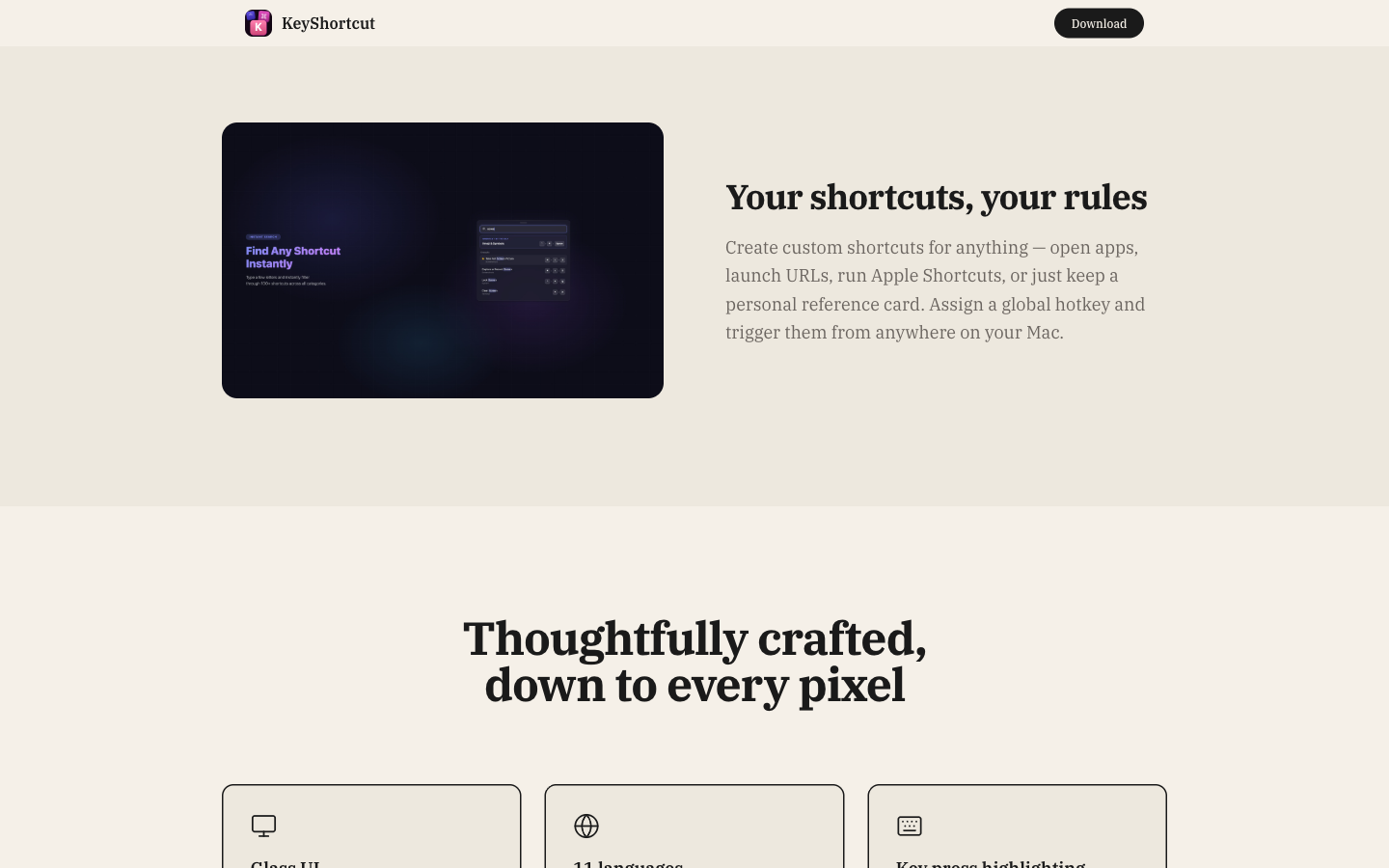
Make your own — notes, or real hotkeys.
Two kinds of custom shortcuts.
The "+" button opens a small editor. A custom shortcut can be a reminder card — just something you want to remember — or a real, system-wide hotkey that does something the moment you press it.
Four actions, all App Store-safe.
- Open an app — One key combo launches any app you choose.
- Open a link — Fires up your default browser with a saved address.
- Run an Apple Shortcut — Any automation you built in Apple's Shortcuts app, started by one hotkey.
- Copy text — Puts your saved text on the clipboard, ready to paste anywhere.
One careful detail.
Hotkeys are registered with the Mac system-wide, so they work in any app. And the app politely refuses to let you take the one combo it needs for itself — the one that opens the panel.
Eleven languages
Translated, mirrored, and switchable on the spot.
No hardcoded text.
Every label in the app comes from a translation catalog covering eleven languages — including Arabic, Hebrew, and Urdu, which mirror the entire layout right-to-left, automatically. Changing the language updates the app instantly, with no restart.
What stays put.
The key symbols (⌘ ⇧ ⌥ ⌃) and app names like Finder, Safari, and Xcode stay in English in every language — because that's how Apple ships them.
The build
One file describes the whole project.
One source of truth.
The entire build setup — version numbers, signing details, every part of the project — lives in one settings file. Every tool in the pipeline reads from that same file. Change it once, and everything downstream follows.
Shipping
Tested, signed, and shipped with one git tag.
From a push to the App Store.
- 85+ automatic tests — The logic is covered by tests with clean, swappable parts — so a change can't quietly break a feature.
- Real UI test runs — Scripted runs open the app, show the panel, search, and even measure how fast it launches.
- Built-in health reports — Crashes and slowdowns from real users show up automatically in Apple's developer dashboard.
- One-tag releases — Push a version tag, and the pipeline builds, signs, notarizes, and uploads to the App Store by itself.
Next project: DepoDart — Subsurface Intelligence